
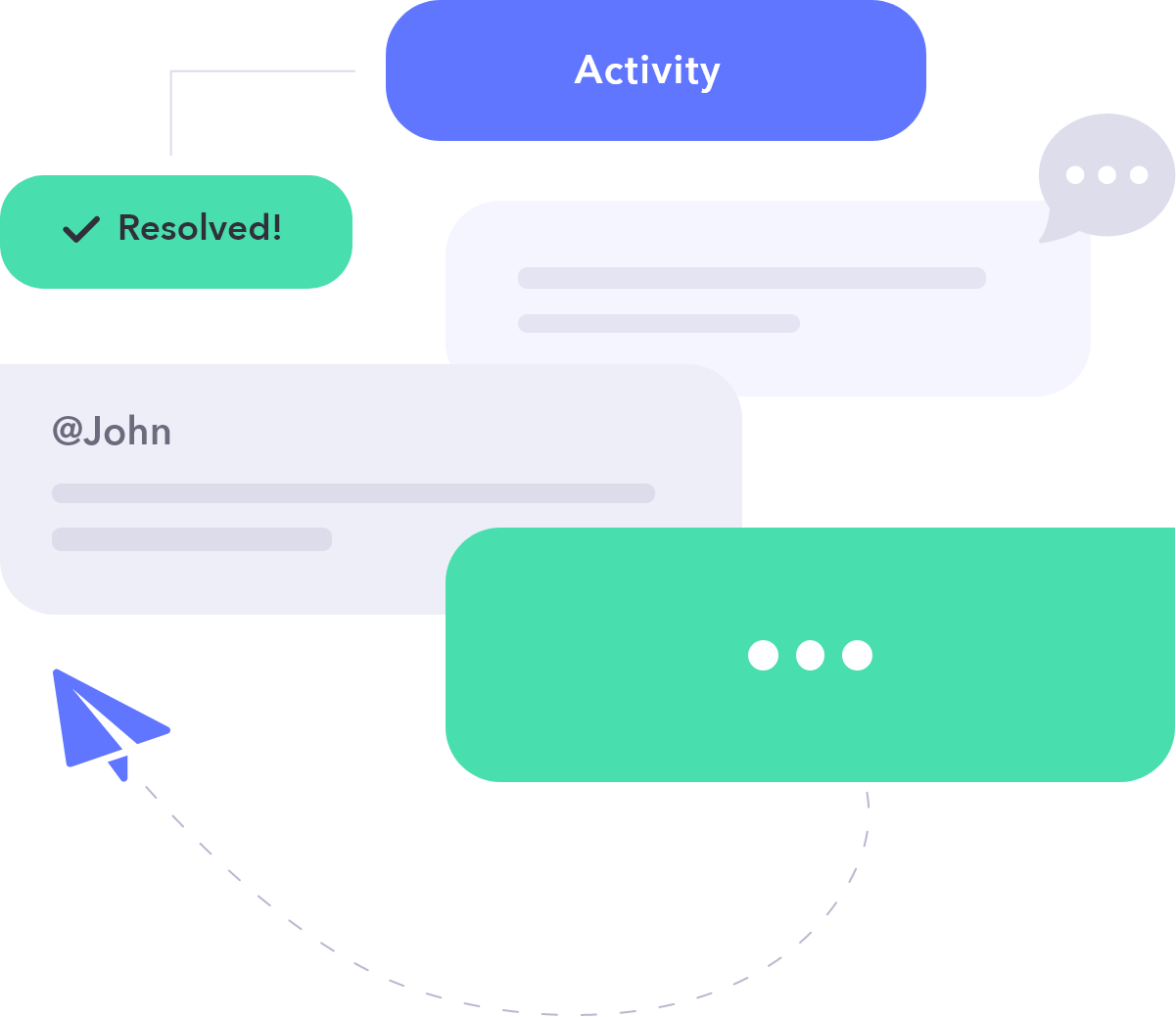
Adding comments to a page is a useful way to record additional detail about the page, and collaborate with team members. Comments are shown in the Activity right sidebar.
Why to use Comments?
Comments can be very helpful. Using comments, you can make a discussion with your teammates about an issue or more in a page, and have them notified automatically. You might use it to make future notes and previous decisions about a page.
Where to access Comments?
To see and write comments on a page, open the Comments
How do Comments work?
To add a comment about a specific line in the documentation, highlight the line and choose Comment in the toolbar, or use the keyboard shortcut to quote it. The comments input will copy the line contents and prompt you for further input.
To add a general comment, open the Activity right sidebar, and start writing in the Add Comment input.
Hit Add when you're done.
Who can use Comments?
All your teammates can comment. You may set up any teammates who are subject matter experts but not contributors to documentation as reviewers, so they may read pages and write comments. See user roles..
Tagging Teammates
To tag your teammates in a comment, start by typing an @ character. A list of all teammates will be available to choose a teammate from.
You and anyone you tag in comments will become a watcher of that page's comments.
Resolve Comments
Once you are done with a comment, you may resolve it to hide its details. Resolving a comment would notify the watchers of resolution status.
Publishers and admins can resolve all comments at once.
You may setup Ask before Publishing if you wish to only publish if all comments are resolved.
Watch/Mute
Once you comment on a page, or get tagged in one, you become a watcher of that page. Being a watcher means being subscribed to all comment activity that happens on the page.
When you are a watcher, you will be receiving e-mails summarising the changes that happened in the page comments.
To unwatch a page at any time:
- Open the Activity sidebar of the page.
- Toggle Watch into Mute.
To resubscribe, toggle Mute into Watch.
You may also unsubscribe from all activity notifications from the User Settings.