
Synced blocks allow you to write a piece of content (single-sourcing), and reuse it as many times as you need in your pages. If you edit the synced block, then it changes in all the pages it is used in.
Reuse Content - Creating Synced Blocks
To create a synced block:
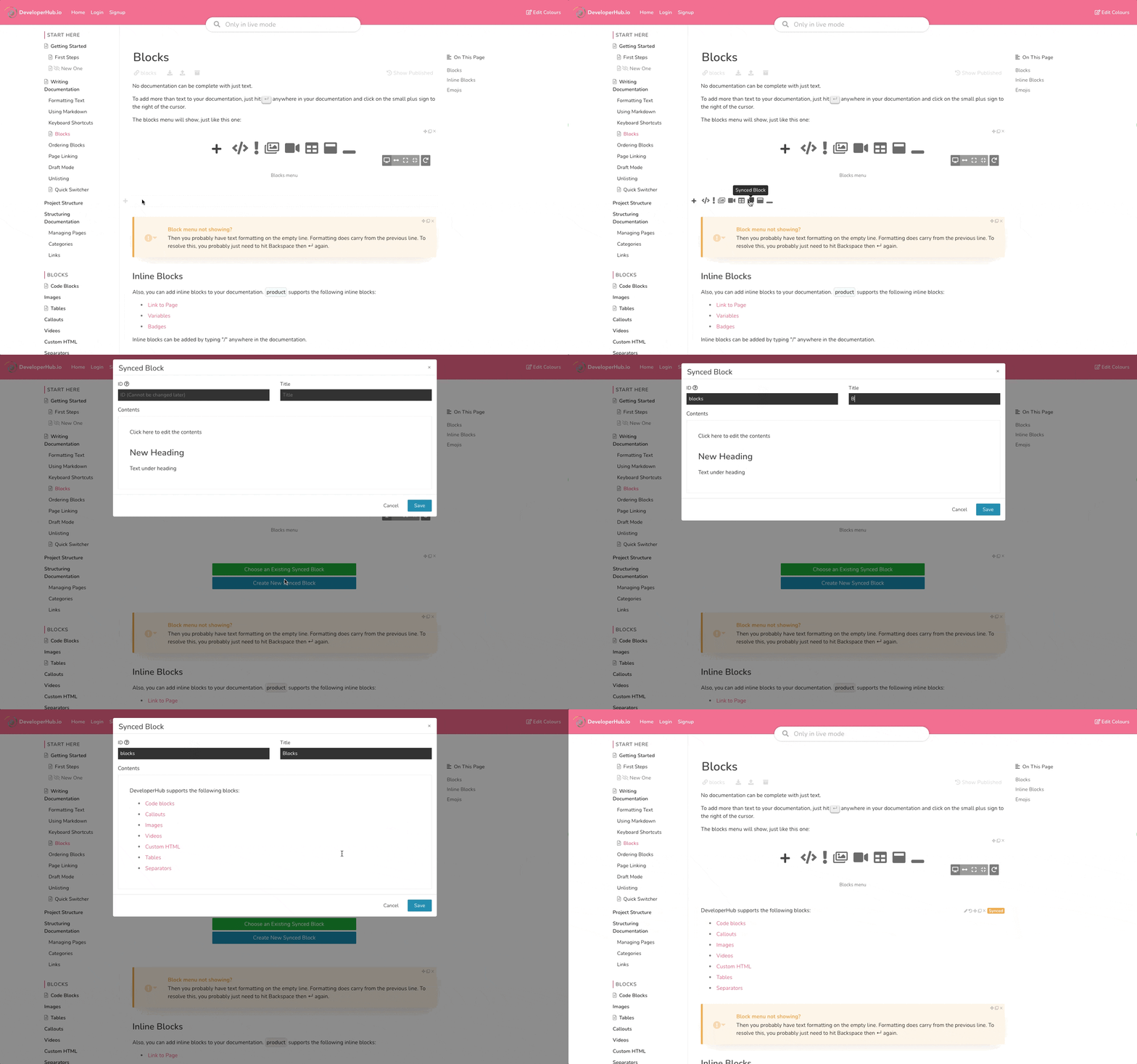
- Choose Synced Block
. - Choose Create New Synced Block. A form will show.
- In the form, you need to define:
- ID: An identifier for the synced block. ID cannot be modified once the synced block is saved. The ID will be shown in your exports. For example, if you are writing a guide about how to install docker, then your ID could be
docker-installation. - Title: Choose a title that describes what the content is about, so your teammates can find it easily. The title can be changed later.
- The contents: Use the editor to write the contents of the synced block. The contents can be changed later. The contents can be anything you can already add on %product%.
- ID: An identifier for the synced block. ID cannot be modified once the synced block is saved. The ID will be shown in your exports. For example, if you are writing a guide about how to install docker, then your ID could be
Reuse a Synced Block
To reuse a synced block:
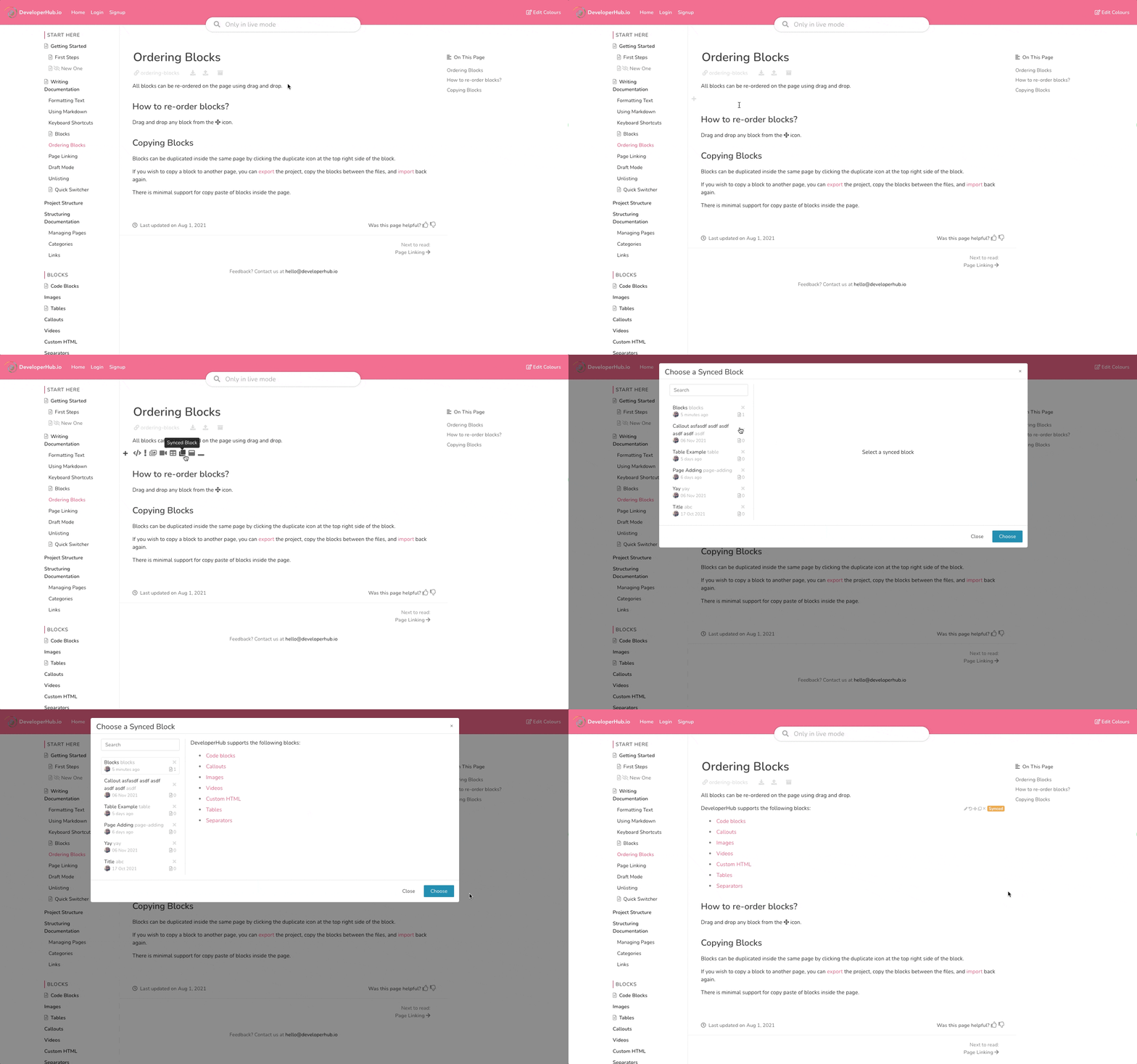
- Start a new line (using
↵ ) - Click on
to open the blocks menu. - Choose Synced Block
. - Choose Choose Existing Synced Block.
- Select the synced block you want to reuse, or search for it first.
- Click on Select.
Identifying a Synced Block
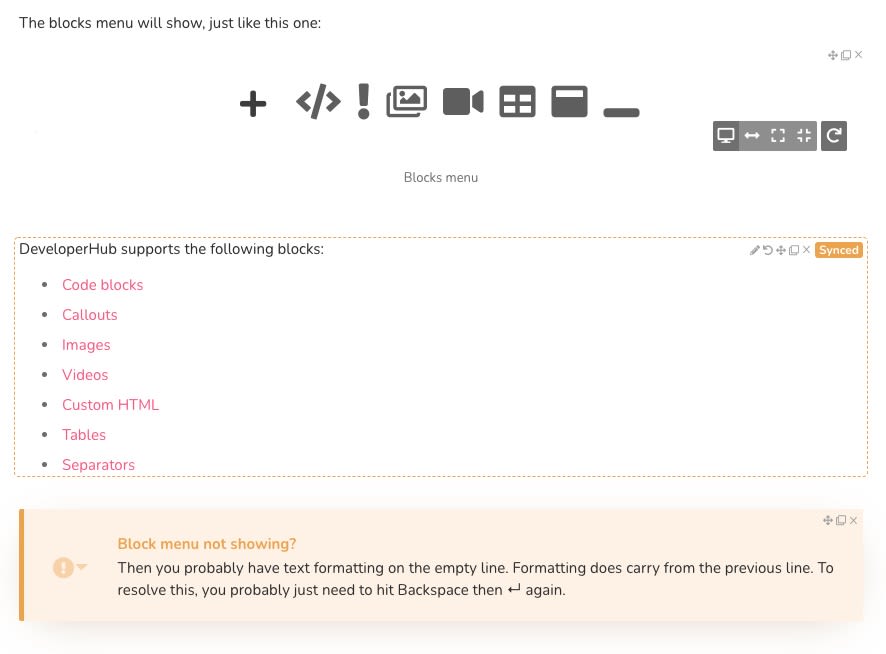
When you're in the editor, synced blocks will have a
Editing a Synced Block
Modifying a synced block changes its contents in all instances it is used. This operation can only be done by Publishers.
To edit a synced block:
- Go to a page that has the synced block to be edited.
- Click on the
icon at the top right of the synced block. - A form will appear where you can modify the title and contents.
- Make the changes and click Save.
Deleting/Archiving a Synced Block
Once a synced block is added to your project, it can never be deleted but it can be archived. Archiving a synced block does not remove its instances from any page it is added to, but it only removes it from the list of synced blocks that your teammates can choose.
To archive a synced block:
- Start a new line (using
↵ ) - Click on
to open the blocks menu. - Choose Synced Block
. - Choose Choose Existing Synced Block.
- Find the synced block to archive, and hit the
icon next to it. - Confirm your choice.
Using Page Links in Synced Blocks
You can link to pages inside a synced block. However, there are limitations to its use.
When the synced block is used in a different version than the one created in, it will be matched using the page slug. Changing the page slug in the source version or the destination version will break the link - and you will be notified when viewing a page that has the synced block.
For example: If you created a synced block that links to "Contact Us" page in v1.0 having "contact-us" slug, then used the synced block in v2.0 and later changed the Contact Us page slug to "how-to-contact-us", then the page link will break in v2.0. You would need to create a separate synced block for v2.0 to handle this situation.