
Draft mode brings more power to your editors, the flexibility to write freely, and the ability to publish at the right time.
How is it different than changing version or documentation publish setting?
Draft mode allows you to control publishing at a page level rather than at a documentation or version level. You can create new pages that are still hidden from the readers while the rest of your documentation is published.
Why?
No one writes their documentation using a pen. Our users want to be able to make changes and not to worry about mistakes.
Page Life-Cycle
Each page could have three states:
- Unpublished
: The page has never been published or was unpublished. - Listed, published.
- Listed, in draft mode
.
Listed, published
Once you publish the unlisted draft page, it becomes listed. Listed means that it is visible to your readers. Also, the changes that were in draft mode are now applied and published.
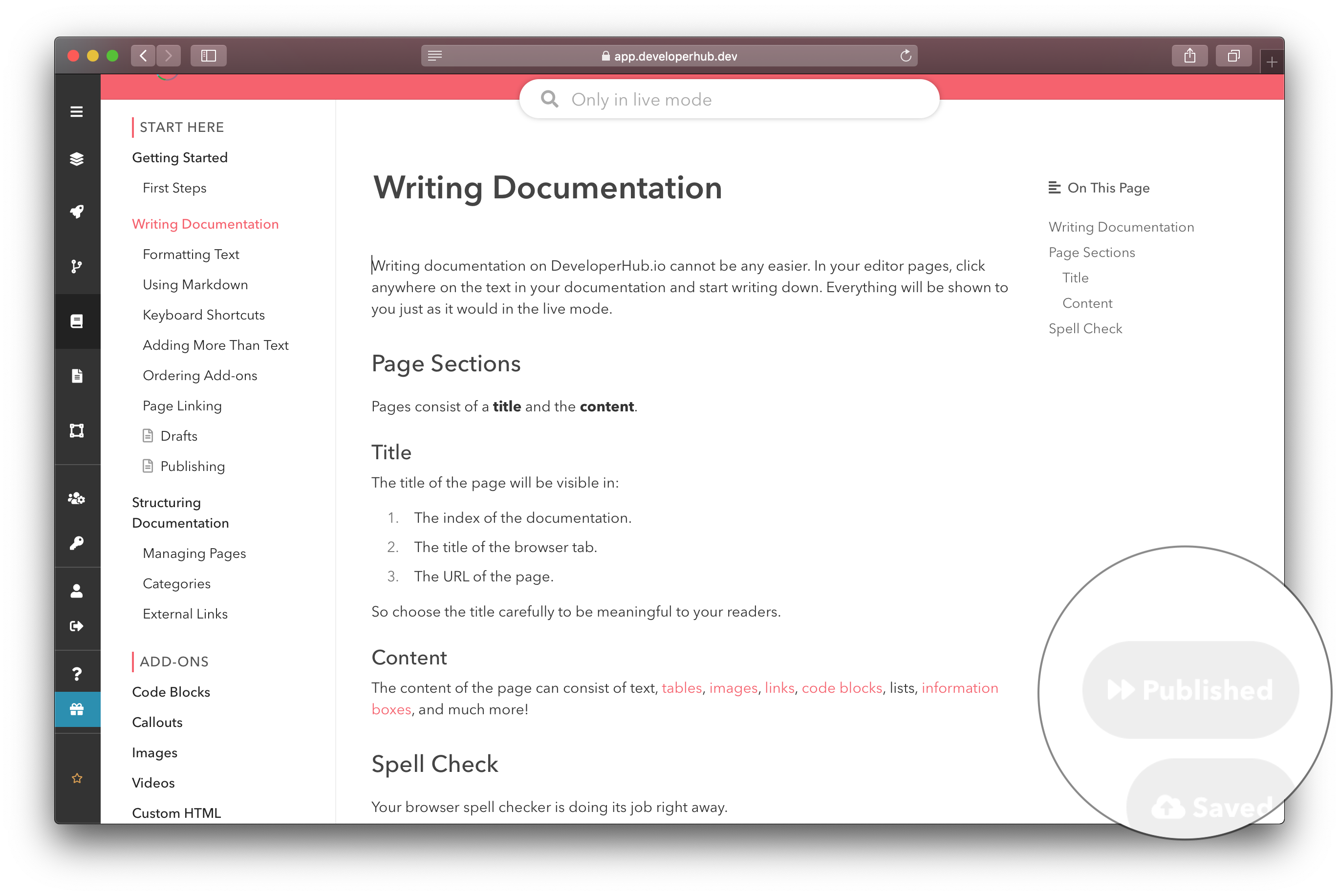
Published page
The Publish
Listed, in draft mode
If you edit a page that was listed and published, it goes back into draft mode. That means that your readers still can access the page, and can read the contents of the page as when it was listed, but your teammates can keep on making edits that are only visible to them.
Publish when you are ready!
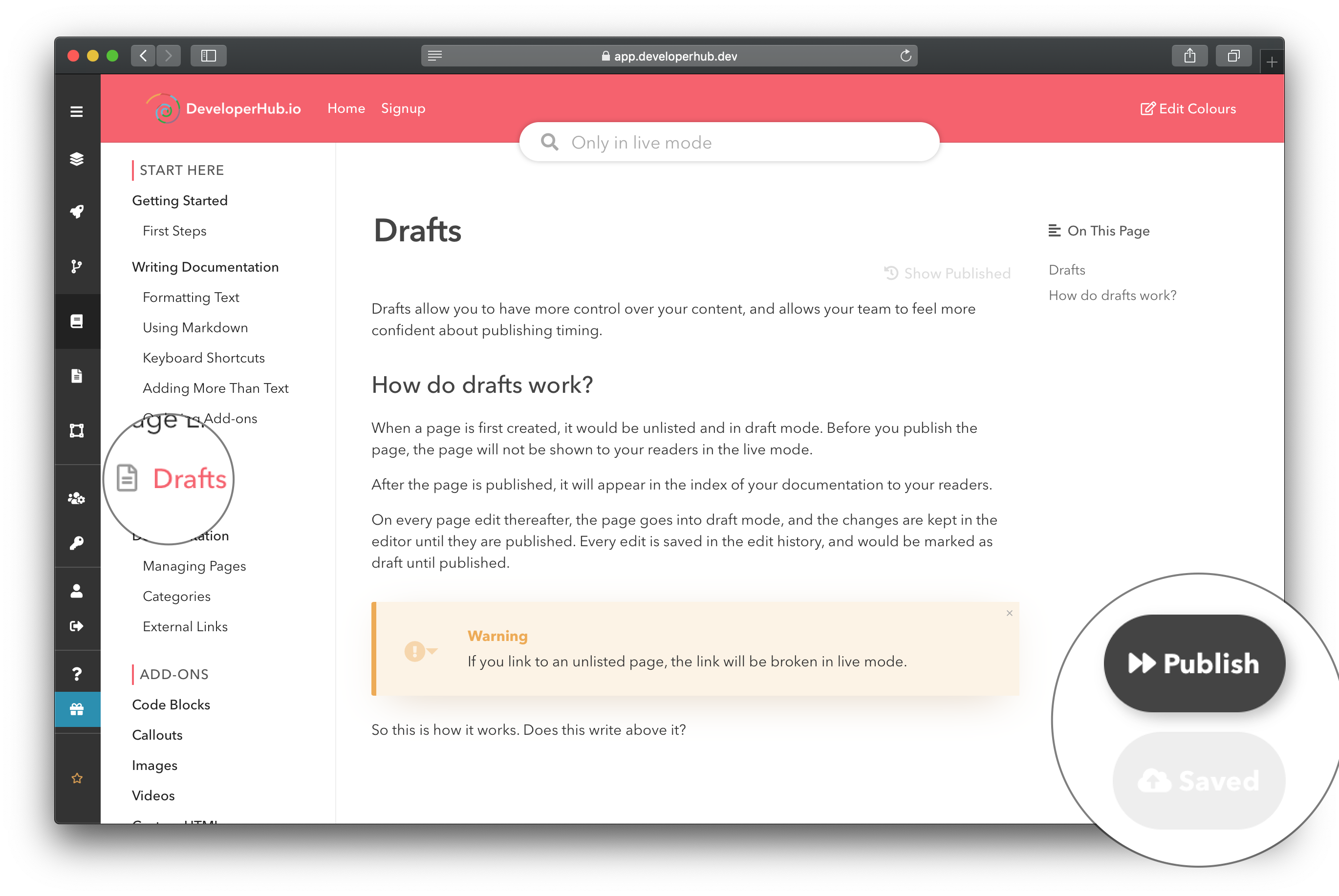
Draft page
Draft pages show a draft page icon in the index, and the control buttons allow you to publish.
Draft Pages History
Every draft is saved in the page history and is indicated as a draft version. To discard all draft changes, and to revert to the published version:
- Click on
Show Published under the page title. - Make any edit.
- Save the page again and publish it.
More
Check out the keyboard shortcuts for saving and publishing faster.